 HubLane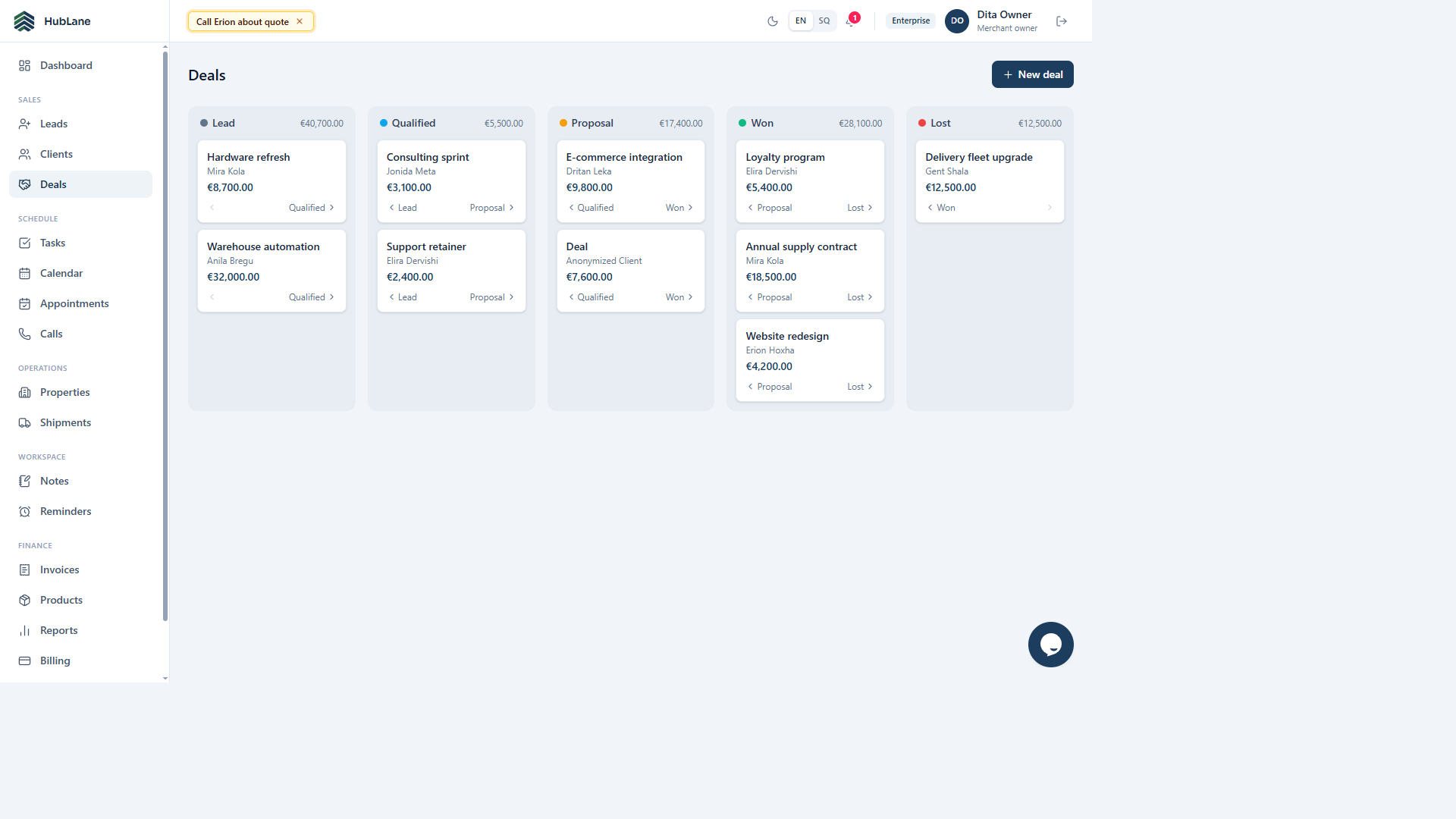
Start with the records your team actually uses
A CRM migration is useful when someone can open a customer record and understand what to do next. Before importing, identify the spreadsheet that currently owns the customer list. Separate active customers from test rows, old exports and mailing lists. Keep an untouched copy so you can compare the result.
Decide who will maintain names, contact details and follow-up after the move. Importing a large file without an owner simply moves the maintenance problem into a new tool.
Clean a small sample before the full import
HubLane’s client import accepts firstName, lastName and email alongside other contact fields. A row without both first and last name is skipped; one populated name is enough. Duplicate non-empty email addresses are skipped, including duplicates within the same file. This is not a fuzzy name-matching system: two people without an email can still produce separate records.
- Download the client CSV starter below.
- Use a handful of real records you are authorized to process.
- Remove extra spaces and check that each email belongs to the intended customer.
- Map the columns in the import screen and keep phone numbers as text.
Reconcile the import result
Read the imported and skipped counts before proceeding. Open sample records and compare names, email addresses and phone numbers with your source. Investigate skipped rows; repeatedly uploading the same file is not a general update mechanism.
Once the sample is correct, import the remaining records. Keep a dated record of the source file and the import result in your team’s own migration notes.
Make follow-up part of the rollout
An imported contact does not automatically have a sales owner, a useful next action or a current deal stage. Agree how the team will use tasks, deal stages and customer notes. Try that process with a small group before asking everyone to change their daily workflow.
Export when you need a portable copy, and periodically check whether records still have a responsible person and a current next step.
Put the workflow into practice
Explore the product or create a workspace for your team.