 HubLane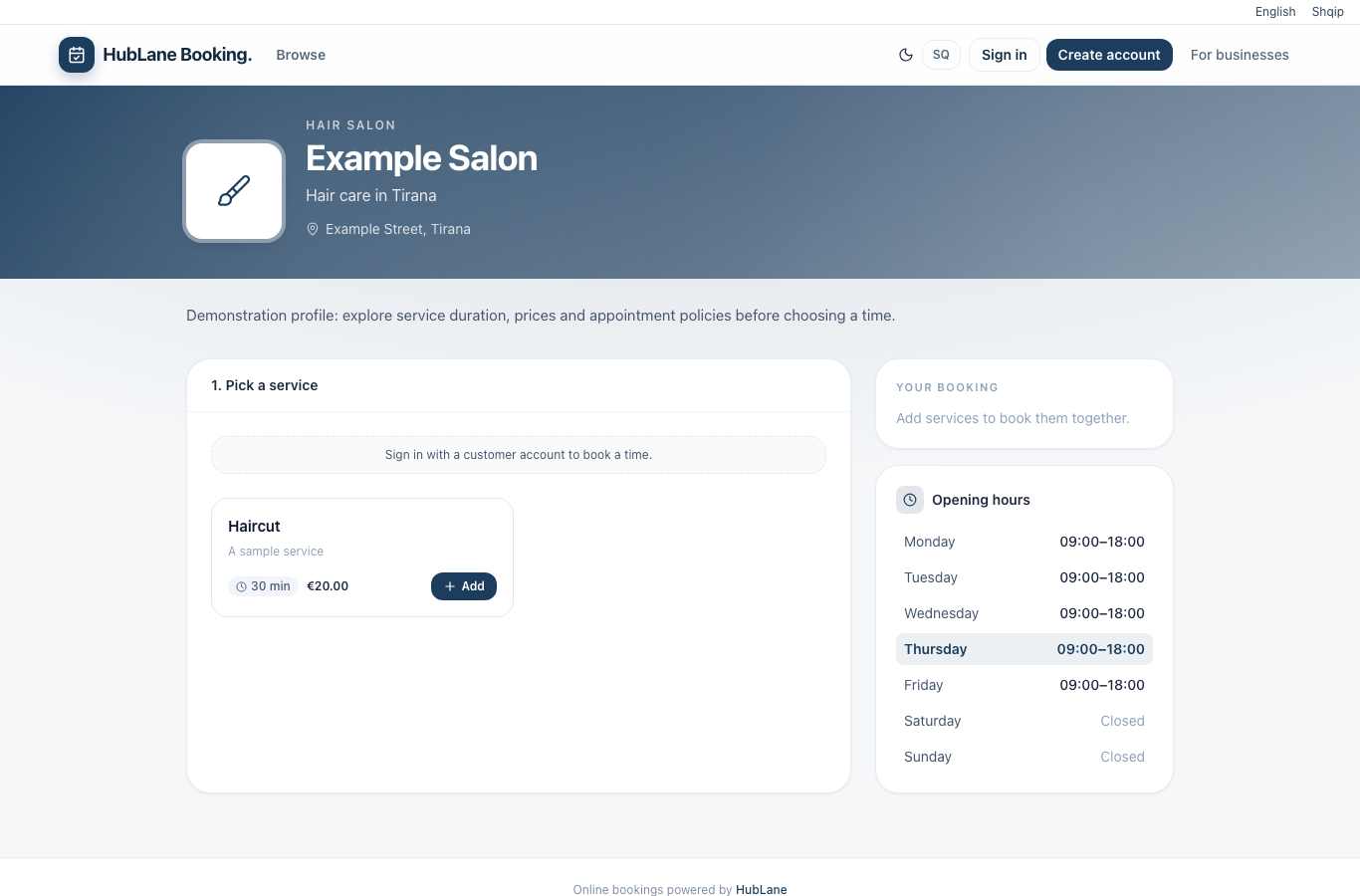
Describe the appointment before asking for a booking
Use service names a customer would recognize. Explain what the appointment includes and what they should prepare. Set the duration to match the actual time needed by the assigned staff. If prices are shown, confirm the amount and currency for each service.
Do not make the customer infer important limitations from a photograph. Put practical information in the business description and service details.
Test availability against a real working day
Set opening hours and assign the staff who can perform each service. Add closures and staff time off before publishing. Check the earliest bookable time, how far ahead a customer can book, and the cancellation notice period.
The venue timezone controls the interpretation of business hours. Visitors may be travelling or browsing from another country, so review the dates and times before confirming.
Make the venue easy to recognize
Confirm the country, city, address and map pin. Use current photos that you have permission to publish. Add the public phone number and contact details the team monitors. Write a useful description in its actual language; publish a second-language version only after checking it.
A published page and directory inclusion are separate choices. A page can be available through its direct link without being listed in the discovery directory.
Walk through the customer journey
HubLane customers sign in and confirm their email before completing a booking. Test the full journey with a customer account, including the confirmation and the appointment’s actual status. If your business requires staff confirmation, make that part of the daily workflow.
- Open the public link on a phone.
- Select a service, staff member and time.
- Confirm the displayed service price and cancellation rules.
- Complete a test booking, verify it in the workspace, then cancel the test appointment.
Put the workflow into practice
Explore the product or create a workspace for your team.